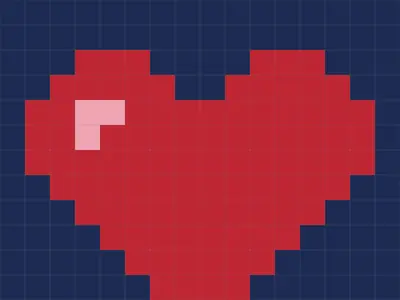
Sometimes you want to make something instead of beat something. Pixel Sketch Studio unblocked is a small drawing app for square-by-square art: sprites, icons, tiny portraits, or a two-frame dancing cat.
There are no goals or timers. You pick a canvas, choose colors and draw until you like what you see. It is based on PixelCraft, an open-source editor by gitstq.
How to play Pixel Sketch Studio
Begin by choosing a canvas. Presets run from 8 by 8 up to 64 by 64, and you can type a custom size anywhere from 4 to 128 squares on each side. A small grid is easier to fill and looks bolder.
Pick a color, then use the pencil to place squares. The bucket fills a connected area of one color, the dropper grabs a color already on the canvas, and the eraser turns squares back to white. Brush size goes from 1 to 8, and you can zoom in for detail work.
For animation, open the Frames panel. Add a blank frame, copy the current one or delete it, then press Play to loop them at 2, 4, 8, 12 or 24 frames per second. Up to 100 undo steps are kept.
Controls
| To… | Keyboard | Mouse | Touch |
|---|---|---|---|
| Draw with the current tool | — | Click or drag on the canvas | Tap or drag with one finger |
| Pick a tool (pencil, eraser, fill, color picker, move) | P, E, G, I, V | Click a tool in the Tools panel | Tap a tool in the Tools panel |
| Set the main or second color | — | Click a swatch for the main color; right-click or Ctrl+click for the second | Tap a swatch |
| Swap main and second color | X | Click the ⇄ button | — |
| Change brush size | [ and ] | Drag the Brush Size slider | — |
| Zoom and pan the view | V, then drag, to use the move tool | Scroll wheel or the zoom buttons; drag with the middle button to pan | Tap the zoom buttons; use the Move tool and drag |
| Undo, redo, toggle grid, export | Ctrl+Z, Ctrl+Y, B, Ctrl+S | Header buttons | — |
Tips
- Close your shapes before filling. The bucket spreads through any matching color it touches, so one missing square lets the fill leak out.
- Animate by copying. Duplicate a finished frame and move just a few squares. A blinking eye or a bouncing ball looks smooth at 4 or 8 frames per second.
- Set two colors and swap. Put your outline color in the second slot, then press X to flip between outline and fill without hunting for swatches.
- Hide the grid to check your work. Press B to turn the lines off and see the picture the way others will.
- Export before you close. Your drawing is not stored anywhere, so save a PNG when you finish.
Pixel Sketch Studio questions
Will my drawing still be there if I refresh?
No. The editor does not save to the browser, so a reload or closed tab clears the canvas. Use the export button or Ctrl+S to download a PNG first.
What do I get when I export an animation?
A single frame downloads as one PNG. Two or more frames download together as a sprite sheet, with the frames laid out in a grid.
Can I use it on a phone?
It works with touch, but space is tight. The color and brush panels become a scrolling strip under the canvas, so a tablet or laptop is more comfortable.